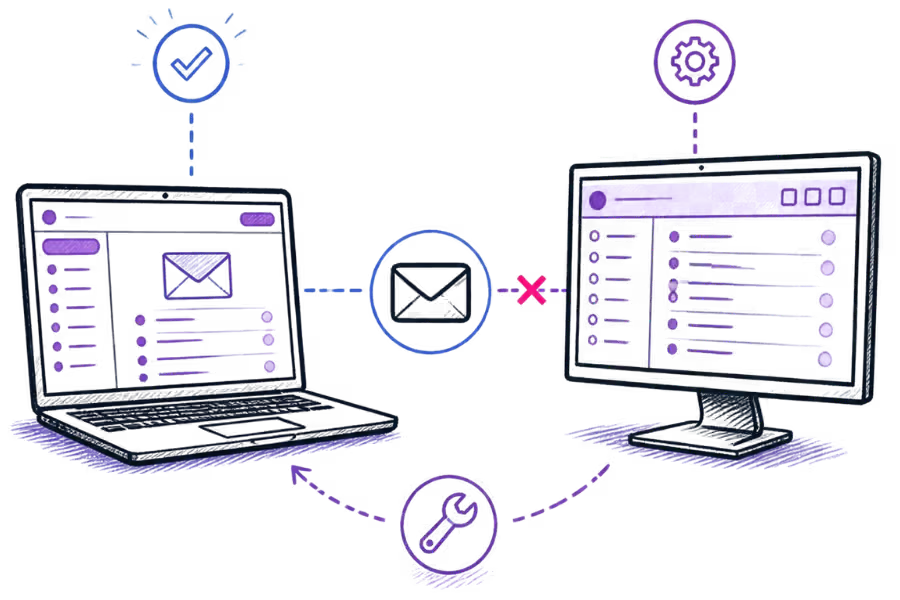
One of the most useful clues when troubleshooting email is whether the mailbox works somewhere else. If you can sign in to webmail and messages are sending and arriving normally there, you already know that at least part of the email service is working. The problem may instead be limited to Outlook or the way Outlook is connecting to the mailbox.
That does not automatically mean Outlook is broken. Incorrect server settings, an outdated password, a disconnected profile, network restrictions or an account configuration problem can all produce similar symptoms. Microsoft also recommends checking the account settings, connection status and network before moving on to more involved repairs.
Can you send and receive the same mailbox successfully through webmail? If the answer is yes, keep the working webmail session open while you troubleshoot Outlook. It gives you a useful comparison point.
Start with webmail
Before changing anything in Outlook, sign in to the mailbox through its webmail service. Send a test message to another address you can access and reply to it.
If both sending and receiving work in webmail, the result points towards the Outlook connection or local configuration rather than immediately indicating a mailbox-wide failure. It is still possible for individual connections to behave differently, so this is a starting point rather than proof of a particular cause.
If webmail also cannot send or receive messages, stop troubleshooting Outlook for the moment. The problem may be with the mailbox, authentication, mail server, DNS, account status or another part of the email service. Fixing Outlook will not resolve a problem that exists at the service level.
Check the account details
The next step is to compare the account in Outlook with the settings supplied by your email provider. For a standard business mailbox connected to an email app, this normally includes the email address, password, incoming mail server, outgoing mail server, ports and encryption settings.
Do not copy settings from a different mailbox simply because the addresses look similar. The correct server names and connection requirements depend on the email service being used.
If your email provider gives you specific IMAP and SMTP server details, use those values rather than guessing. Microsoft notes that when Outlook cannot determine the settings automatically, an account can be configured manually using the provider's incoming and outgoing server information.
Check incoming mail settings
If Outlook is not receiving new messages, check the incoming mail configuration first. For accounts using IMAP, compare the incoming server name, port and encryption method with the details supplied by your email provider.
IMAP is commonly used when you want messages and folders to remain synchronised between the mail server and multiple devices. The important point is that Outlook must connect to the correct IMAP service using the settings expected by that provider.
If Outlook repeatedly asks for a password or reports that it cannot connect to the incoming server, check the username and password before changing other settings. A recent password change is an easy thing to overlook because webmail may already have been updated while Outlook is still using the old credentials.
Check outgoing mail settings
Receiving mail and sending mail use different connections, so a mailbox can sometimes receive messages while outgoing mail fails. If messages are getting stuck in the Outlook Outbox, check the SMTP server details and authentication settings.
Compare the outgoing server name, port and encryption method with your provider's instructions. Some email services also require authentication when Outlook connects to the SMTP server.
Microsoft specifically advises checking the incoming and outgoing server ports and encryption types against the values supplied by the email provider when troubleshooting an account in Outlook.
Change one setting, test the account, and note the result. If you change the server name, port, encryption and password together, it becomes harder to identify which setting was actually causing the problem.
Check the mailbox password
A password problem can be surprisingly easy to miss. If the mailbox password was changed recently, Outlook may still have the previous password saved.
Enter the current mailbox password when Outlook requests it. Make sure you are using the password for the actual mailbox and not a password belonging to the hosting account, control panel or another email address.
If the password is correct but Outlook continues to reject the account, avoid repeatedly entering it without checking the account settings. Repeated password prompts can also occur when the server details, authentication method or Outlook account configuration do not match what the email provider expects.
Check Outlook connection status
Look at Outlook's connection status. In classic Outlook, messages such as Disconnected, Working Offline orTrying to connect indicate that Outlook is not currently communicating normally with the mail server.
If Outlook has been placed in offline mode, switch it back online and try a manual send and receive. Microsoft lists checking the connection status and disabling Work Offline as an early troubleshooting step for sending and receiving problems.
Also consider whether the problem affects one Outlook account or the whole application. If another account in Outlook works normally, the issue may be specific to the affected mailbox or its account configuration.
Check the network and security software
A working webmail session does not always rule out a local network or application problem. Webmail normally uses a browser connection, while Outlook makes separate connections to mail services using protocols such as IMAP and SMTP.
If Outlook cannot connect, check whether the computer has normal internet access. You should also consider whether a firewall, antivirus product, VPN or network policy could be interfering with Outlook's mail connections.
Microsoft documents cases where antivirus software can interfere with email activity and also notes that network or ISP restrictions can affect connections to an outgoing SMTP server.
Do not permanently disable antivirus or firewall protection just to make an email test work. If you suspect security software is involved, use its documented troubleshooting procedure or ask the software provider for guidance.
When to remove and add the account again
If the mailbox works in webmail, the account details appear correct, the network is working and Outlook still cannot connect, recreating the Outlook account or profile can be a reasonable next step.
This should not be the first thing you do. Removing an account can change how Outlook stores locally cached information, and the exact process depends on the Outlook version and account type. Make sure you understand what is stored locally before removing anything.
Microsoft also recommends repairing an Outlook profile or creating a new profile in some circumstances where the application itself is having connection problems. If the issue persists after a clean account setup, that is useful evidence that the problem may be outside the original Outlook account configuration.
The simple diagnosis
When email works in webmail but not Outlook, work from the outside in rather than immediately changing everything.
- Webmail works, Outlook does not: investigate Outlook, its account settings, profile or local connection.
- Webmail and Outlook both fail: investigate the mailbox or wider email service before concentrating on Outlook.
- Outlook receives but cannot send: check the SMTP server, port, encryption and authentication settings.
- Outlook sends but cannot receive: check the incoming IMAP settings and mailbox credentials.
- Outlook repeatedly asks for the password: check the current password as well as the account and authentication settings.
- Only one computer is affected: investigate that device, Outlook profile, network or security software before changing the mailbox itself.
The main lesson is that webmail and Outlook are two different ways of accessing the same mailbox. If one works and the other does not, that difference is useful evidence. Start with the working service, compare the account settings carefully, and change one thing at a time.
If you are setting up business email for your domain, it also helps to keep your mailbox details, server settings and device configuration together. OurBusiness Email Setup Checklistcovers the wider setup process, including authentication and testing. If you still need business email for your domain, you canview PalmHost Business Emailand see what is included.